Windows
64-bit installer
Download for WindowsOpen the .exe, finish setup, then launch Ember.
Loading account…
Desktop app
Free for Windows and Mac. Choose your computer below.
64-bit installer
Download for WindowsOpen the .exe, finish setup, then launch Ember.
Choose your Mac’s processor
Open the .dmg and drag Ember to Applications. Check your processor in Apple menu → About This Mac.
Current release: v0.2.1. Installers are not publisher-signed or Apple-notarized; a first-open approval may be required.
Live signals for this release are awaiting a server update. You can install the app and test browser startup in the meantime.
curl.exe -LO https://github.com/4SIGHTalgo/ember-desktop/releases/latest/download/Ember-Setup-x64.exeDownloads the installer to your current folder. Open it to finish setup.
brew install --cask 4sightalgo/ember/emberRequires Homebrew. Otherwise, use the Mac download above.
Copy this into an agent that can control your computer. It will install Ember and open the app; you handle sign-in and any security approvals.
Install the latest stable Ember Desktop on this computer and open its welcome or sign-in screen. Stop before sign-in or pressing Start.

Official repository: https://github.com/4SIGHTalgo/ember-desktop
Download and setup guide: https://getembersignals.com/downloads/

1. Detect the operating system and processor. Supported downloads are Windows x64, Apple Silicon Mac, and Intel Mac. If this computer is unsupported, stop and explain. If Ember is already open, verify its window instead of starting another instance.
2. Read the official repository's current installation instructions and latest stable release. Download the matching installer and its .sha256 sidecar from the SAME release tag. Compare the file's SHA-256 with the sidecar; stop if they differ. Preserve any existing Ember settings and account data.
3. On Windows, run the verified .exe installer. On Mac, open the matching .dmg and move Ember into Applications. If Homebrew is already installed, you may use the official cask instead: brew install --cask 4sightalgo/ember/ember. Do not install a package manager just for this task.
4. These releases may be unsigned or unnotarized. If the OS blocks installation or opening, show me the prompt and the official per-app approval steps, then wait for me to approve. Do not disable security protections, remove quarantine attributes, or ask me to paste passwords into chat. Use native OS prompts for required authentication.
5. Launch Ember and confirm that its actual welcome or sign-in window is visible. If you cannot observe the window, report that limitation instead of claiming success. Note if Chrome or GeoComply Player Location Check is missing; those are needed for later browser use, not for opening Ember.

Stop with Ember open. Do not sign in, access a sportsbook account, press Start, or place a wager. Report the installed version, application location, checksum result, and the screen you observed.You need Google Chrome and GeoComply Player Location Check. Download and run the helper installer for your computer.
Open the app, sign in through your browser, and review your settings before pressing Start. A subscription is required for signals.
Sign in to your connected account in the Chrome window Ember opens. Complete verification codes and location prompts there.
Use one device at a time. Do not log in to the same connected account on another device, or close or resize the browser window Ember opens while it is running.
Ember’s installers are not publisher-signed or Apple-notarized. If an unrecognized-app prompt appears, follow the steps for your computer. These are illustrations; wording and layout vary by OS version.
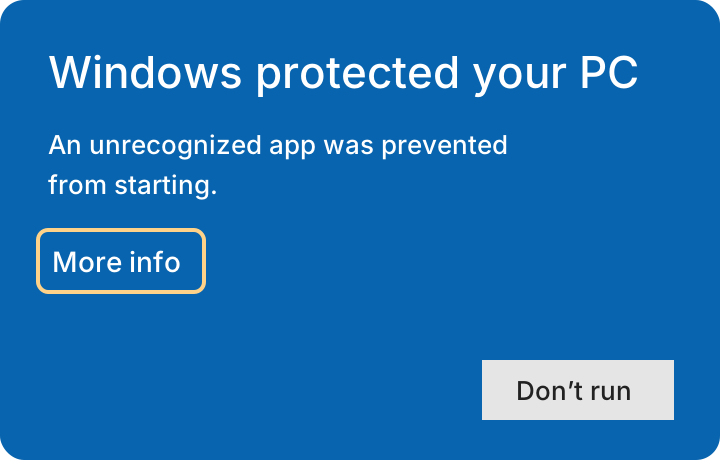
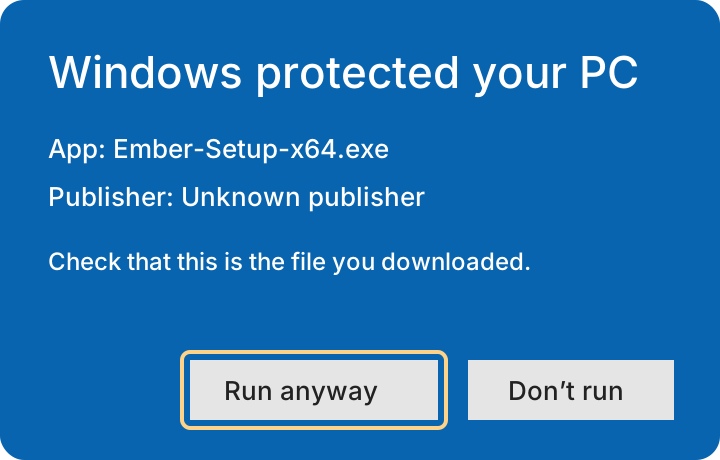
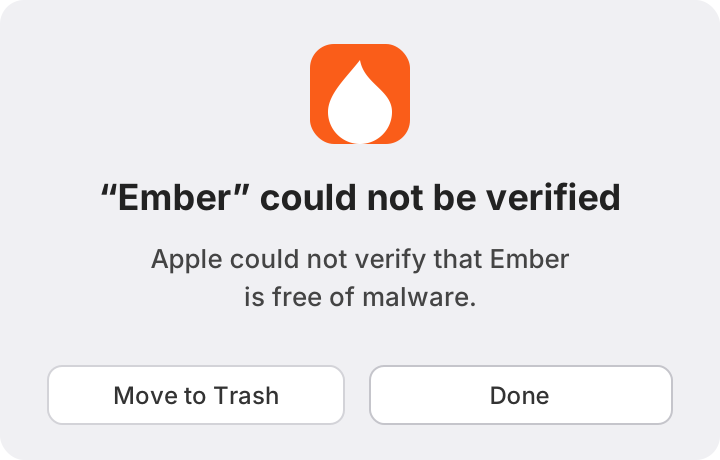
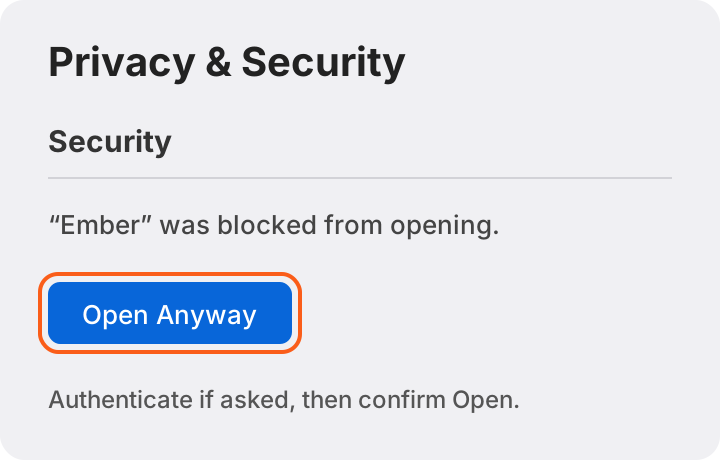
Do not disable Gatekeeper, Defender, or SmartScreen. If the system reports malware, says the app will damage your computer, or says it is damaged, stop and contact support instead of overriding the warning.
Browser automation may violate a sportsbook’s terms and lead to account restrictions or other action. Read the account-risk terms.